 Meter Max
What you need
- An Android phone with the Google Play Store.
- Your car or van's number plate.
- Your National Insurance number, if you have it to hand. You can add it later.
Install the app
-
Open the Play Store
On your phone, find the Play Store app. It has a coloured triangle "play" symbol. Tap it to open it.
-
Search for Meter Max
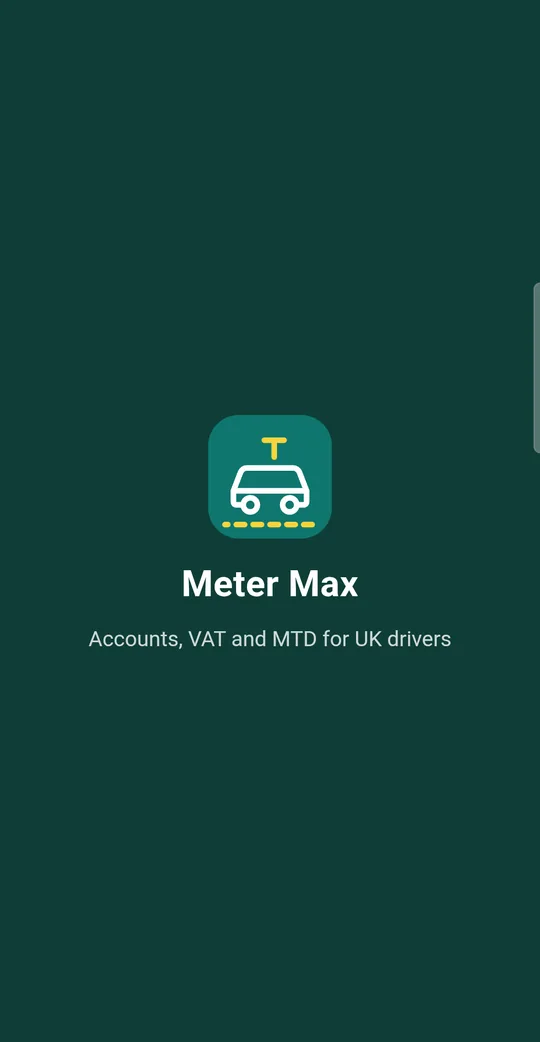
Tap the search bar at the top, type Meter Max and tap the search key on your keyboard. Look for the green icon with a white car and a yellow taxi sign.
Coming soon Meter Max is on its way to Google Play. Email us and we'll tell you the day it arrives.
-
Install and open it
Tap Install. When it has finished, tap Open.
You'll see the Meter Max welcome screen for a moment. Next time, you can open the app from its icon on your home screen.
Set up your books
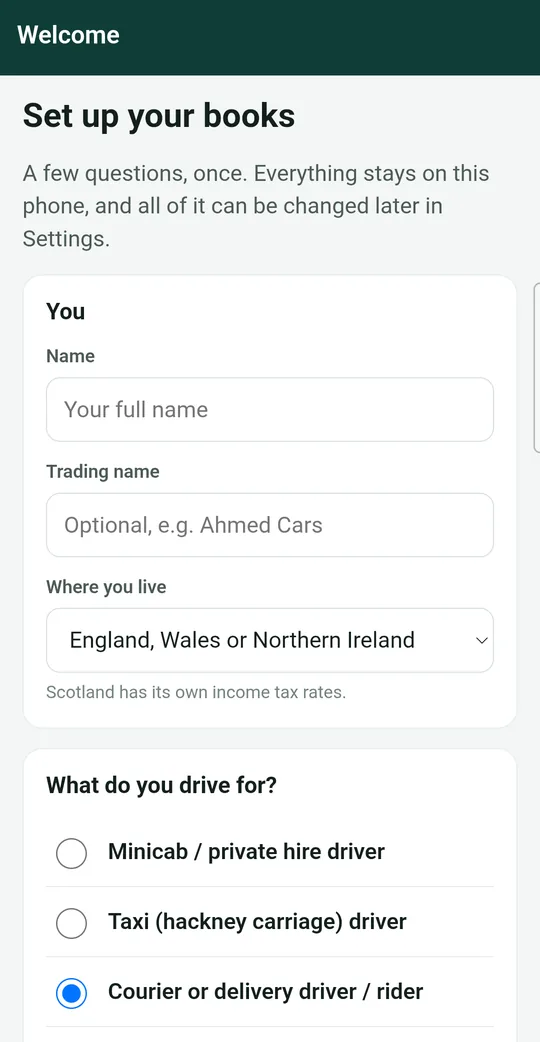
The first time you open Meter Max, you'll see a screen called Set up your books. Work from the top of the screen down. Slide your finger up the screen to see more.
-
Tell it about you
In the box called You:
- Name: tap the box and type your full name.
- Trading name: only if your business has a name, like "Ahmed Cars". Most drivers leave this empty.
- Where you live: leave it as England, Wales or Northern Ireland, or tap it and choose Scotland if you live there. Scotland has different tax rates.
-
Choose what you drive for
Under What do you drive for? tap the circle next to the one that fits you best:
- Minicab / private hire driver: Uber, Bolt, FREENOW, or a local minicab firm.
- Taxi (hackney carriage) driver: a licensed black cab or taxi you can hail in the street.
- Courier or delivery driver / rider: Amazon Flex, Deliveroo, Uber Eats, Evri and similar.
- Van driver (multi-drop, man and van).
-
How your books are kept
Leave this on Cash basis unless an accountant has told you otherwise. It's the simplest: money counts when it reaches you, and costs count when you pay them.
Leave Books start on as it is. It's normally 6 April, the start of the tax year.
-
VAT and your vehicle
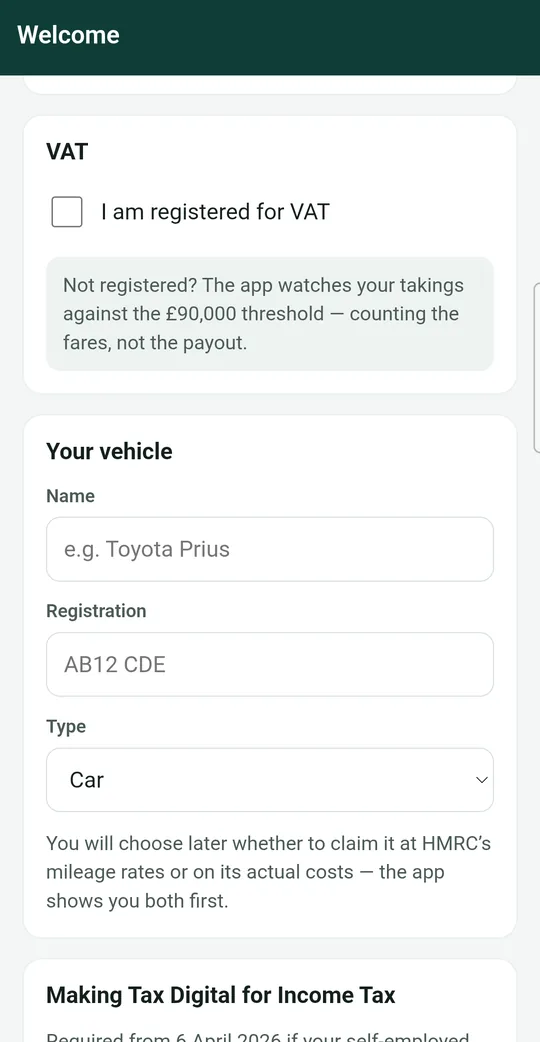
VAT: only tick I am registered for VAT if you have a VAT number from HMRC. Most drivers are not registered. Leave it empty if you aren't sure. The app will warn you if your takings get close to the point where you need to register.
Your vehicle:
- Name: the make and model, for example "Toyota Prius".
- Registration: your number plate.
- Type: Car, Van, Motorcycle or Bicycle.
-
Making Tax Digital
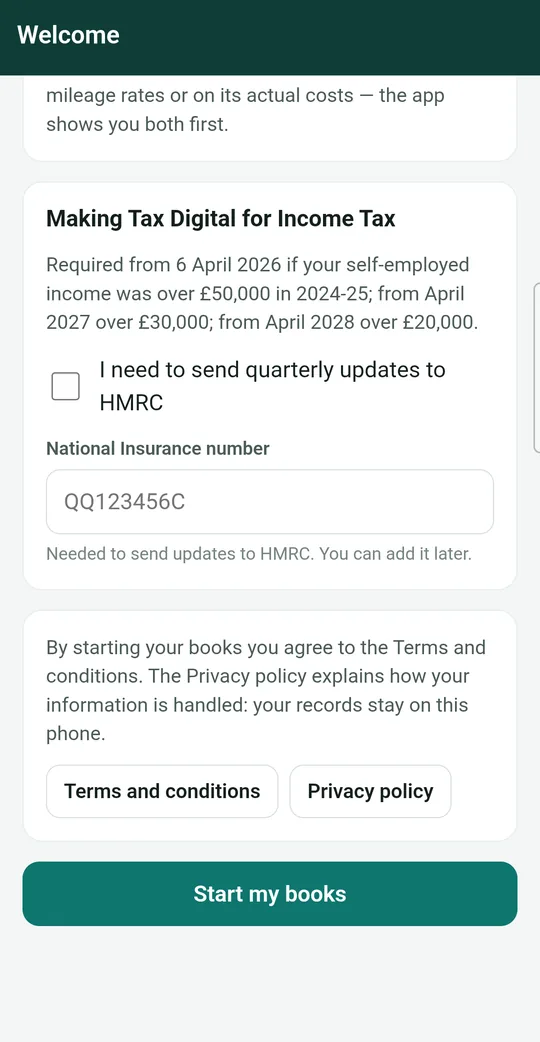
Tick I need to send quarterly updates to HMRC only if HMRC has told you that you must use Making Tax Digital. The screen shows who needs to.
If you know your National Insurance number, type it in. It looks like QQ 12 34 56 C and is on your payslips, P60 or HMRC letters. You can skip this and add it later.
-
Tap Start my books
If you want to, tap Terms and conditions and Privacy policy to read them. Then tap the big green Start my books button at the bottom.
You'll see the message "Your books are ready". Well done, that's the hard part over!
The first time, the app also shows you the subscription plans so you can start your free trial. See guide 14 if you'd like help with that.
What to do next
You're now on the Home screen. From now on, each day or week you'll just add your takings, expenses and miles.
- Guide 2: Finding your way around
- Guide 3: Record your takings
- Guide 12: Back up your records. Do this once a week so you never lose anything.