 Meter Max
What you need
- A screen lock already set up on your phone: a fingerprint, face unlock, PIN, pattern or password. If you don't have one, set it up in your phone's Settings › Security first.
Turn on the app lock
-
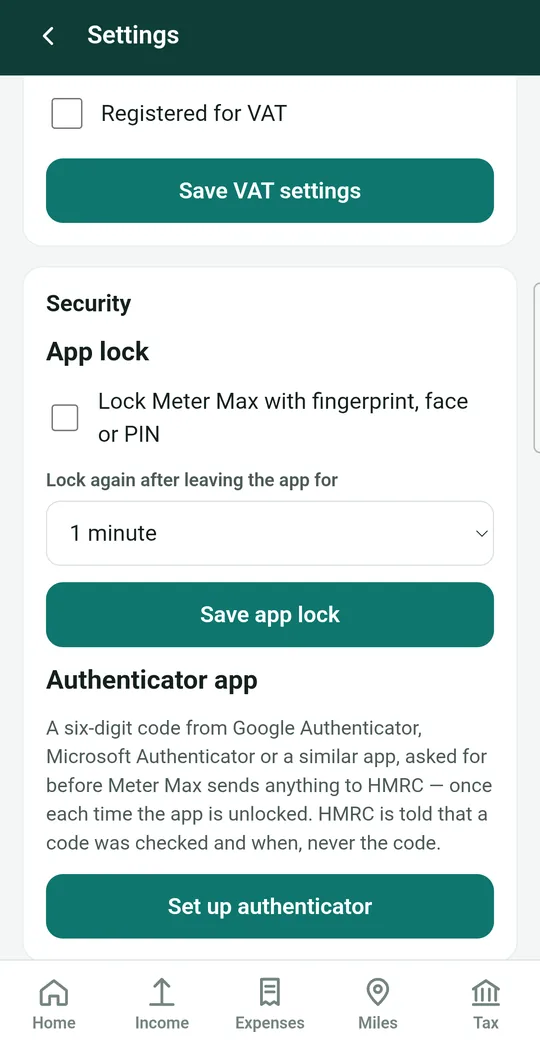
Open Security in Settings
Tap the gear icon at the top right. Slide up the screen until you see the Security box.
-
Tick the box
Under App lock, tick Lock Meter Max with fingerprint, face or PIN.
-
Choose when it locks
Tap the box under Lock again after leaving the app for and choose Straight away, 1 minute, 5 minutes or 15 minutes. One minute is a good choice: you can switch to your driver app and back without unlocking every time.
-
Save
Tap Save app lock. Your phone asks you to confirm with your fingerprint, face or PIN.
Opening a locked app
When the app is locked you'll see "Meter Max is locked". Tap Unlock and use your fingerprint, face or phone PIN, just as you do to unlock your phone.
Meter Max never sees or stores your fingerprint, face or PIN. Your phone checks it and simply tells the app "yes" or "no".
Add an authenticator app (recommended if you connect to HMRC)
An authenticator app gives you a new six-digit code every 30 seconds. Meter Max asks for a code before sending anything to HMRC, so even someone who unlocks your phone can't send returns in your name.
-
Get an authenticator app
Install a free authenticator app from the Play Store, such as Google Authenticator or Microsoft Authenticator.
-
Tap Set up authenticator
In Meter Max, go to Settings › Security and tap Set up authenticator. A panel opens called Set up an authenticator app.
-
Link the two apps
The easiest way is to tap Open authenticator app. Your authenticator app opens and adds Meter Max by itself.
If that doesn't work, tap Copy key, open your authenticator app, choose Enter a setup key, and paste it. If you have a second device, you can scan the QR code shown instead.
-
Type the code to confirm
Your authenticator app now shows a six-digit code for Meter Max. Go back to Meter Max, type it in the Code box and tap Confirm.
From now on, the first time you send something to HMRC after unlocking, Meter Max shows Authenticator code. Open your authenticator app, type the current code, and tap Continue.
Lost your authenticator app?
If you get a new phone or delete your authenticator app, open Meter Max, unlock it with your phone's screen lock, and go to Settings › Security › Remove authenticator. Then set it up again.