 Meter Max
What counts as business miles
Business miles are the miles you drive for work:
- driving to pick up a passenger or collect a delivery;
- driving between jobs and drops;
- driving back afterwards.
If you work from home, driving from home to your first job counts for most drivers. Personal trips, like the school run or shopping on your day off, don't count.
Add your miles
-
Open the Miles screen
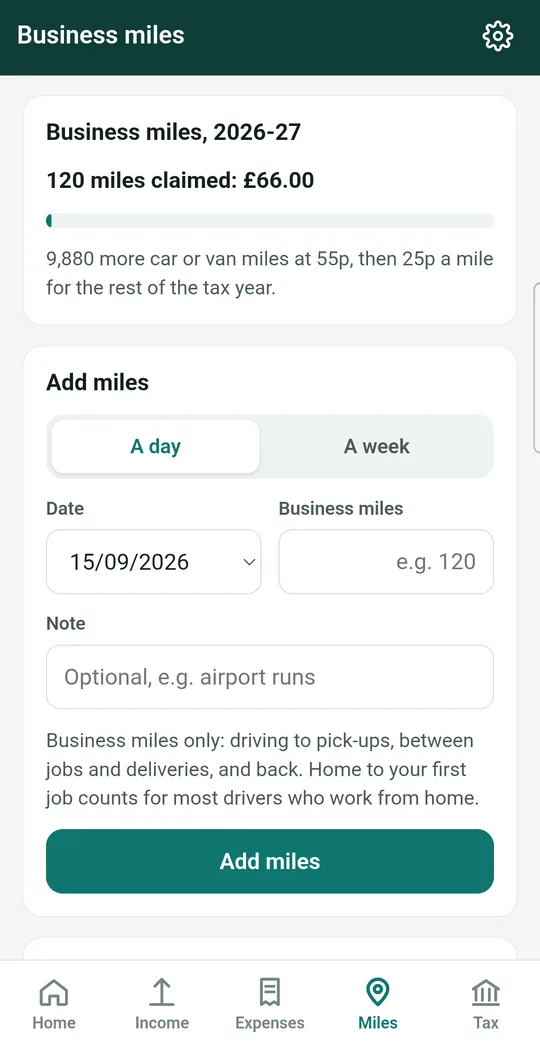
Tap Miles at the bottom of the screen, or + Miles on the Home screen.
At the top you'll see how many business miles you've claimed this tax year, and how much they're worth.
-
Choose a day or a week
In the Add miles box, tap A day or A week. Then check the Date (or Week ending).
-
Type in the miles
Tap Business miles and type the number, for example 120.
If you have more than one vehicle, choose which one under Vehicle. You can add a Note if you like, such as "Airport runs".
-
Tap Add miles
Tap the green Add miles button. You'll see a message such as "120 miles added", and the entry appears in the list below.
Mileage rates or actual costs?
HMRC lets you claim for your car or van in one of two ways:
| Way to claim | How it works |
|---|---|
| Mileage rates | A fixed amount for every business mile. It covers fuel, insurance, repairs and wear and tear, so you don't claim those separately. Simple, and you only need to keep a note of your miles. |
| Actual costs | You claim the real running costs, like fuel, insurance and repairs, for the business share of your driving, plus an allowance for buying the vehicle. More record keeping, but it can be worth more for expensive or high-cost vehicles. |
Meter Max works out both from your records, so you can see which gives you more before you decide.
-
Open the comparison
On the Miles screen, find the vehicle box and tap Compare and choose. (You may also see a Compare button on the Home screen.)
-
Look at the table
It shows what you could claim this year so far with Mileage rates and with Actual costs, and tells you which is ahead, for example "Mileage rates are ahead by £240 so far."
Tip: wait a few weeks so you've added real miles and costs before you choose. The comparison is more accurate then.
-
Make your choice
Tap Claim at mileage rates or Claim actual costs, read the message and tap Choose.
Choose carefully HMRC's rules mean you can't switch while you own that vehicle. If you're unsure, ask an accountant before you choose.
Add or change a vehicle
On the vehicle screen, tap Add another vehicle for a new car or van, or Edit to change the details of one you have. You can add the date you bought it, the price and, when the time comes, the date you sold it.
Remove a wrong entry
Tap the entry in the list, then tap Remove. Meter Max asks why (for example "entered twice"), so your records stay clear. Then add the right miles again.